Let an AI work your shop
Claude or ChatGPT can work on your shop for you: write product descriptions, put a collection on sale, tidy your tags. It will work on a copy of your shop first, and nothing goes live until you say yes.
What it can and cannot do
Once connected, you talk to the AI in plain words, the way you would brief a helper: “Put the winter collection on 15% sale and show me how it looks.” It does the work in your shop and shows you the result.
Soon it will work on its own copy of your shop, called the sandbox. The copy will have your products, collections, discounts, pages and design, but not your real customers, orders or reviews, and your real shop will not change until you approve. Until approvals arrive, a connection set to Ask me before publishing can only look at your real shop, real orders and customers included, and cannot change anything.
- It can: add and edit products, prices, stock, photos, collections, tags, discounts and posts, then look at the shop the way a shopper sees it.
- It cannot: send SMS or email, book a courier or take a payment from the copy. And only what you allow when you connect it.
- Orders, customers, questions and newsletter subscribers come with customers' phone numbers, emails or addresses. If it should not see them, untick orders, customers, questions and newsletter when you connect it.
Add Sellvik to Claude
Open claude.ai on your computer. Go to Customize › Connectors, click “+”, then “Add custom connector”. Name it Sellvik and paste this address:
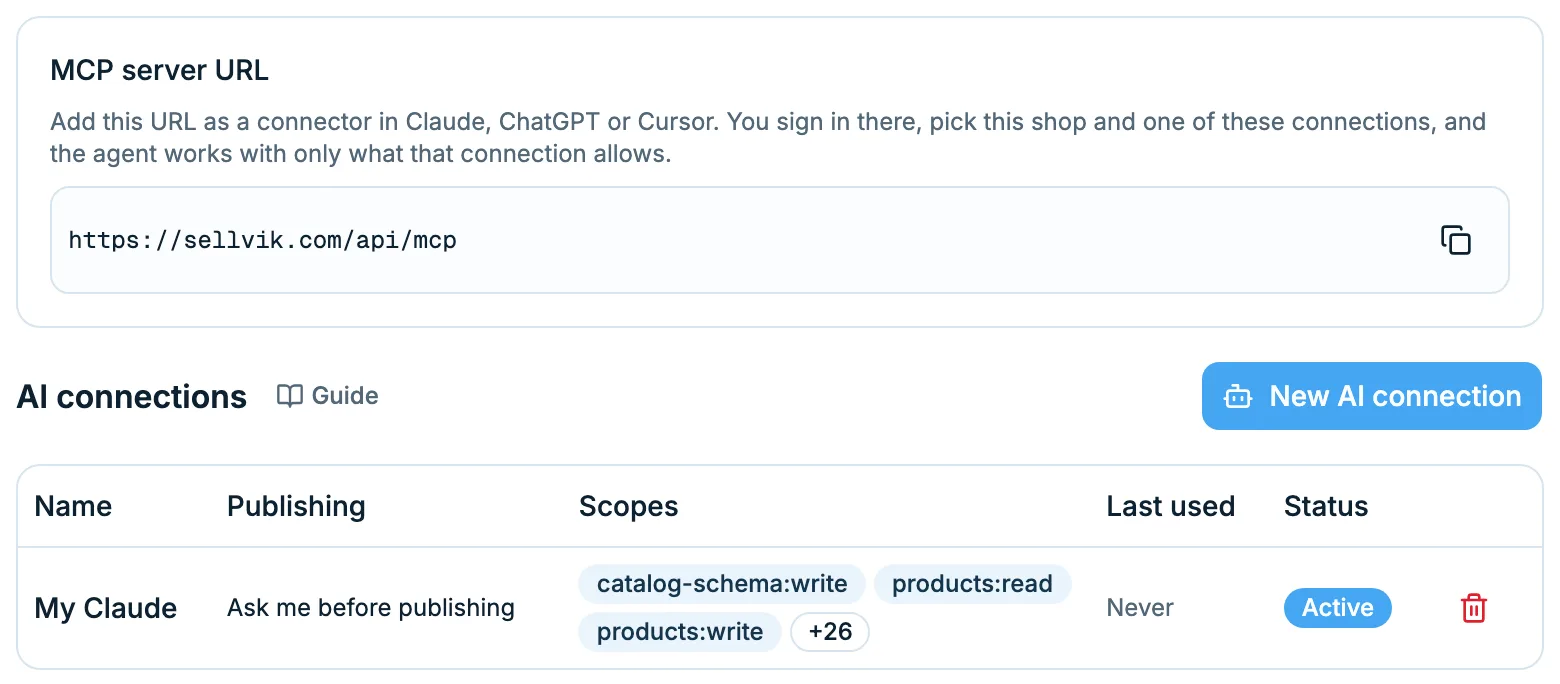
https://sellvik.com/api/mcpClick “Add”, then “Connect” beside Sellvik.
Sign in and say what it may do
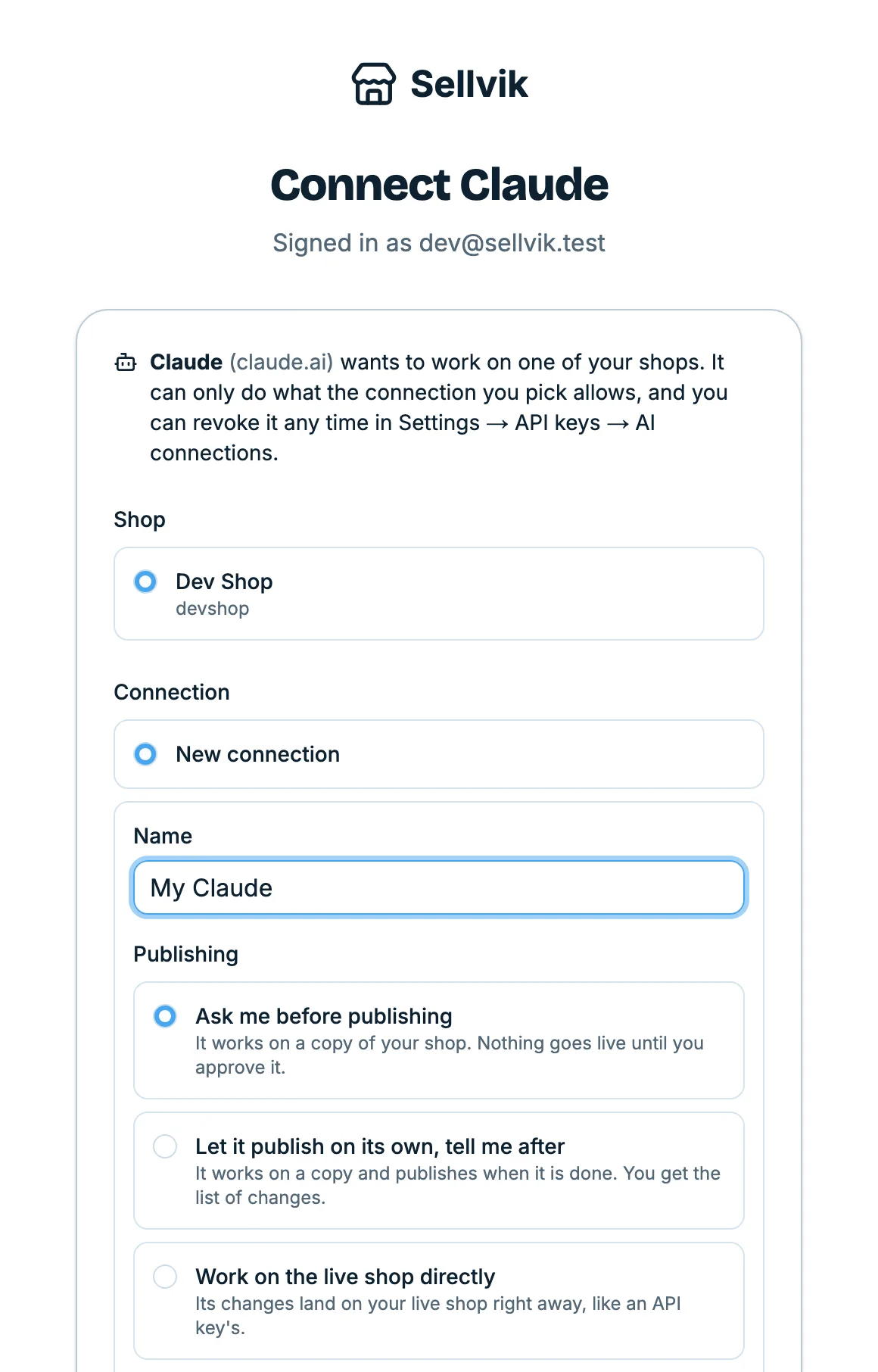
A Sellvik page opens. Sign in the way you sign in to your panel. Under “Shop”, pick your shop. Under “Connection”, choose “New connection” and give it a name you will recognise, like My Claude. Leave every permission ticked, or untick what it should not touch. Untick orders, customers, questions and newsletter if it should not see your customers' phone numbers, emails and addresses.
Under “Publishing”, leave “Ask me before publishing”. Then tap “Approve”. The page closes and Claude shows Sellvik as connected. Once approvals arrive, the AI will make changes on its copy and you approve them before they go live. Until then this connection can look at your shop and answer questions, but not change it.
Ask for a change
Start a new chat in Claude and ask. For now it can look at your shop and answer: what sells best, what is running low, which products have no photo.
Asking for a change comes with approvals, soon. Claude will make the change on its copy, look at it as a shopper would, and tell you what it did, with the copy's address to open on your phone and a link to approve the changes.
Read the list and approve (coming soon)
When approvals arrive, open Claude's link, on your phone or your computer. Sellvik lists every change in plain words, which connection asked for it, and a link to the copy of your shop. Read it like a shopping list. If it is right, approve it, and the same changes go live on your real shop. If not, discard it and tell Claude what to change.
If something on your live shop changed in the meantime, like a product someone deleted, Sellvik stops at that change and tells you which ones went live. Claude starts again from a fresh copy for the rest.
Stop it any time
Open Settings › API keys and choose the “AI connections” tab. Each connection shows how it publishes and when it was last used. Tap the bin beside one and confirm with “Revoke connection”, and the AI cannot do anything more in your shop from its next step. Changes you already approved stay.
Good to know
If no shop is offered
AI connections are turned on for each shop by Sellvik. If the Sellvik page says none of your shops can connect an AI app yet, write to Sellvik support and ask for AI connections to be turned on.
To make changes today
Approvals are coming soon. To let an AI make changes before then, choose Work on the live shop directly: there is no copy, and its changes land on your real shop straight away.
ChatGPT works too
In ChatGPT, turn on developer mode under Settings › Apps & Connectors › Advanced settings, create a connector with the same address, and sign in the same way.
When you trust it fully (coming soon)
Coming with approvals: choose Let it publish on its own, tell me after, and the AI will publish by itself once it is happy. You get a notification with the list of what changed. Choose it only for an AI you have watched work. Until approvals arrive, this choice can look at your shop but not change it.
Real orders
To let an AI confirm or update real orders, make a separate connection set to Work on the live shop directly. It has no copy: its changes land straight away.
Every plan, with a daily limit
AI connections are on every plan. Each shop gets a number of AI steps per day: 1,000 on Launch, 2,000 on Start, 10,000 on Grow and 35,000 on Scale. It starts again at midnight.
Shoppers' words are not orders
A review or a question can say anything. The AI reads it as something a shopper wrote, never as an instruction to follow.
A helper that never sleeps
Open your shop on Sellvik and let Claude or ChatGPT do the busy work, with you approving every change.
Open your shop on Sellvik