Product types and collections in Sellvik
Under Products there are two lists that sound alike and do different jobs. A product type says what a product is, and which details you fill in for it. A collection says where shoppers find it.
Two different jobs
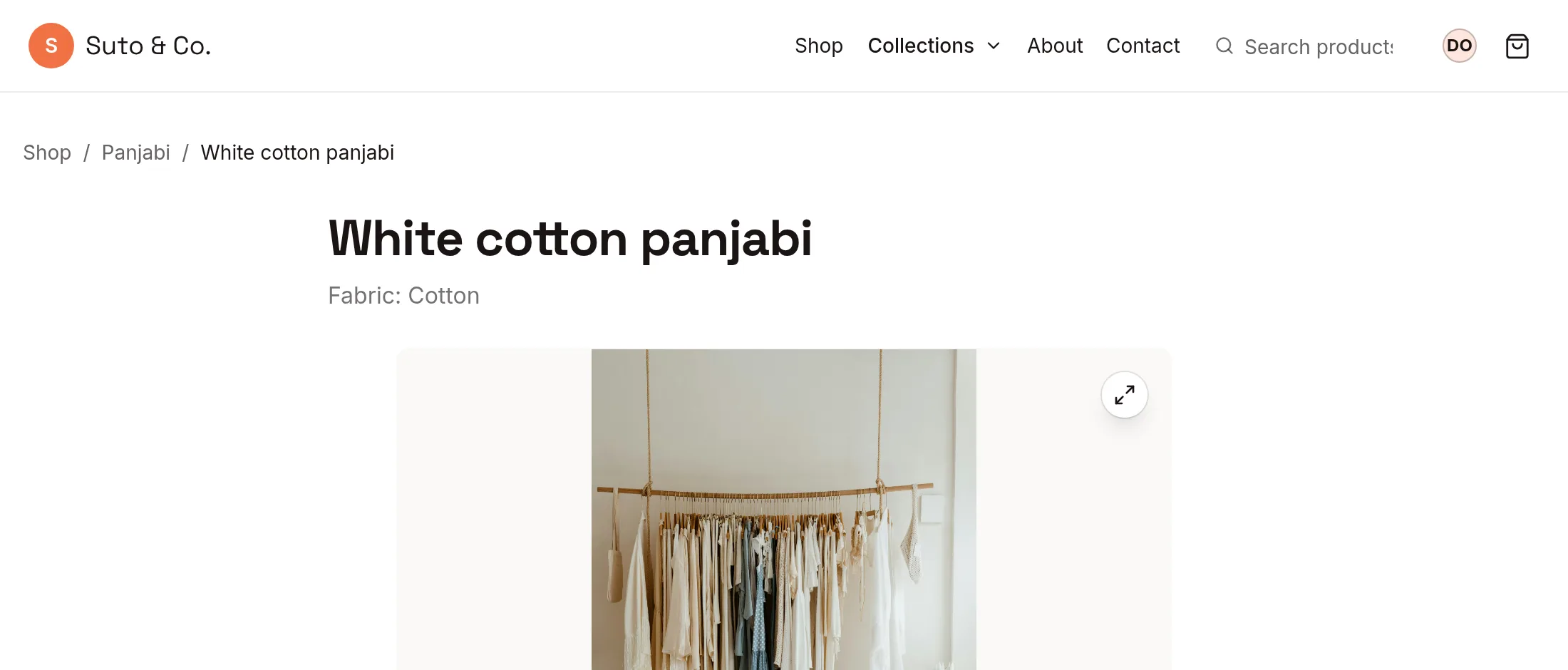
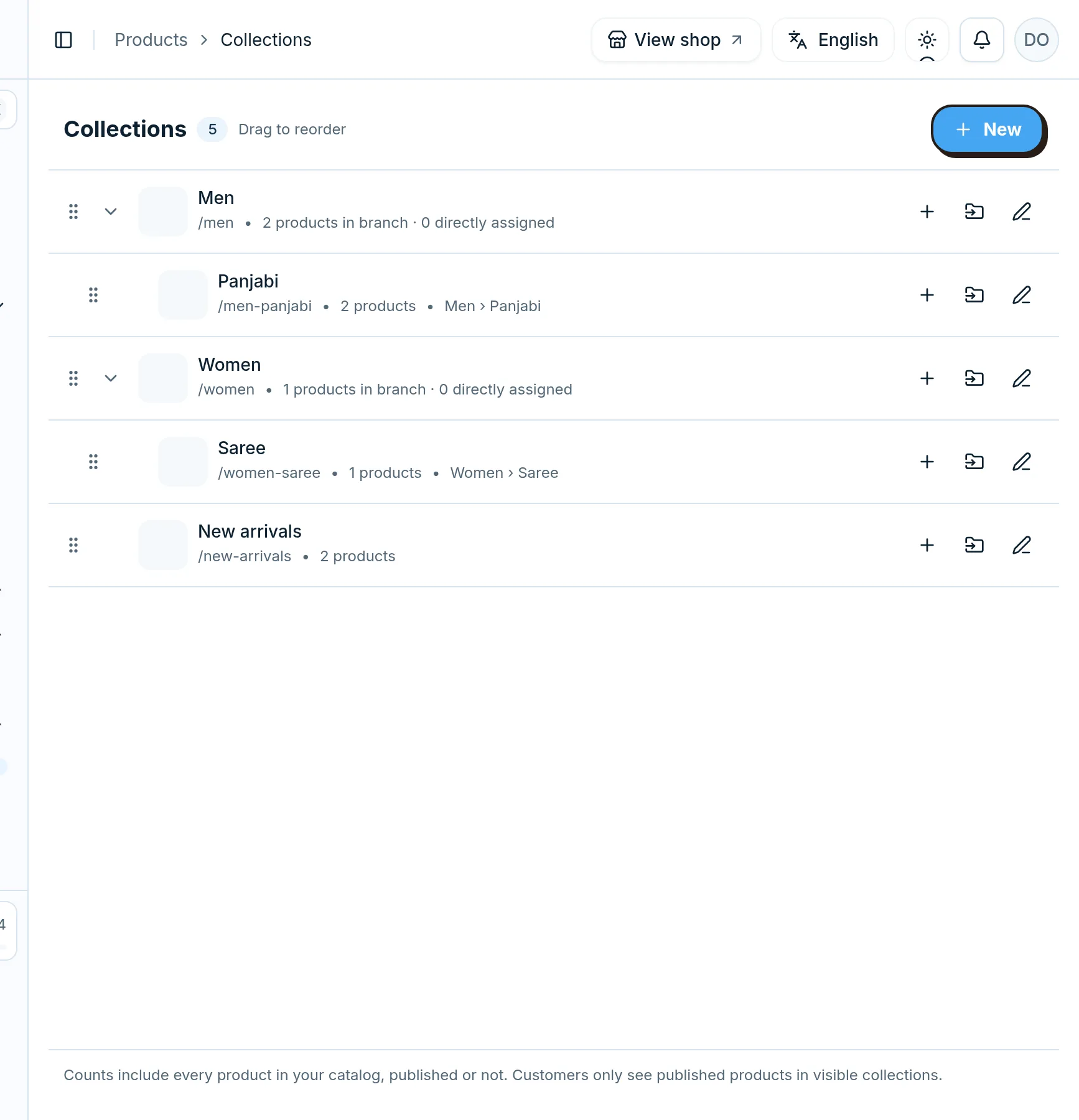
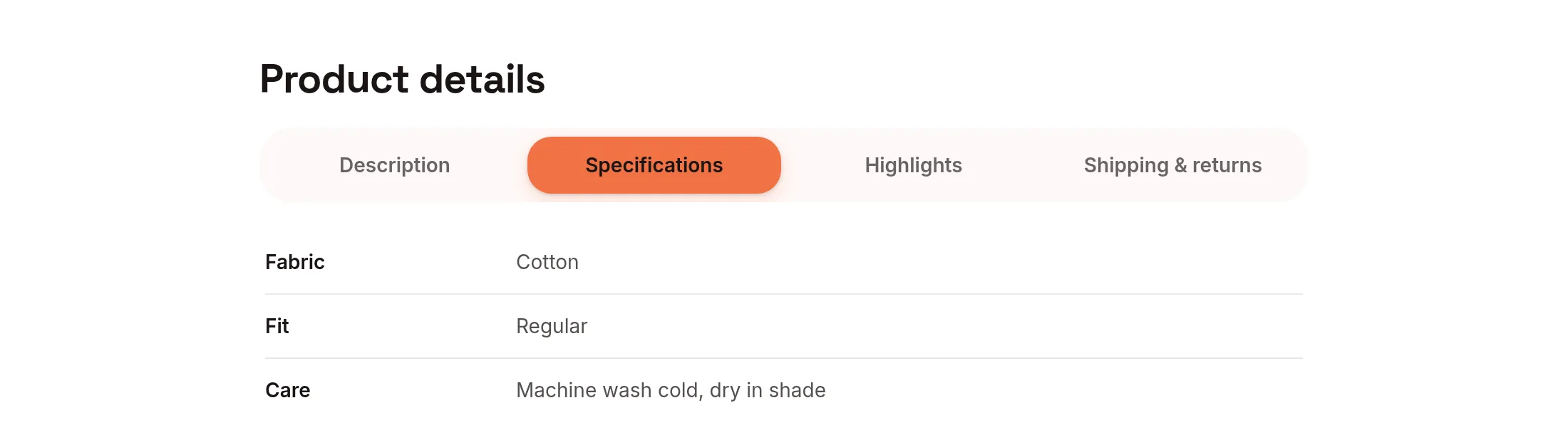
Take a white cotton panjabi. Its product type is Panjabi: that tells Sellvik to ask for its fabric, its fit and how to care for it. Its collections are Men › Panjabi and New arrivals: that is where shoppers will find it in your menu.
If you have sold on Daraz or WooCommerce, what they call a category is a collection here.
- Product type: one per product. It decides which details the product has. Shoppers see the answers on the product page.
- Collection: as many as you like per product, and one can sit inside another (Men › Panjabi). Shoppers see them in the menu, on the collections page and in the path above the product name.
Make a product type
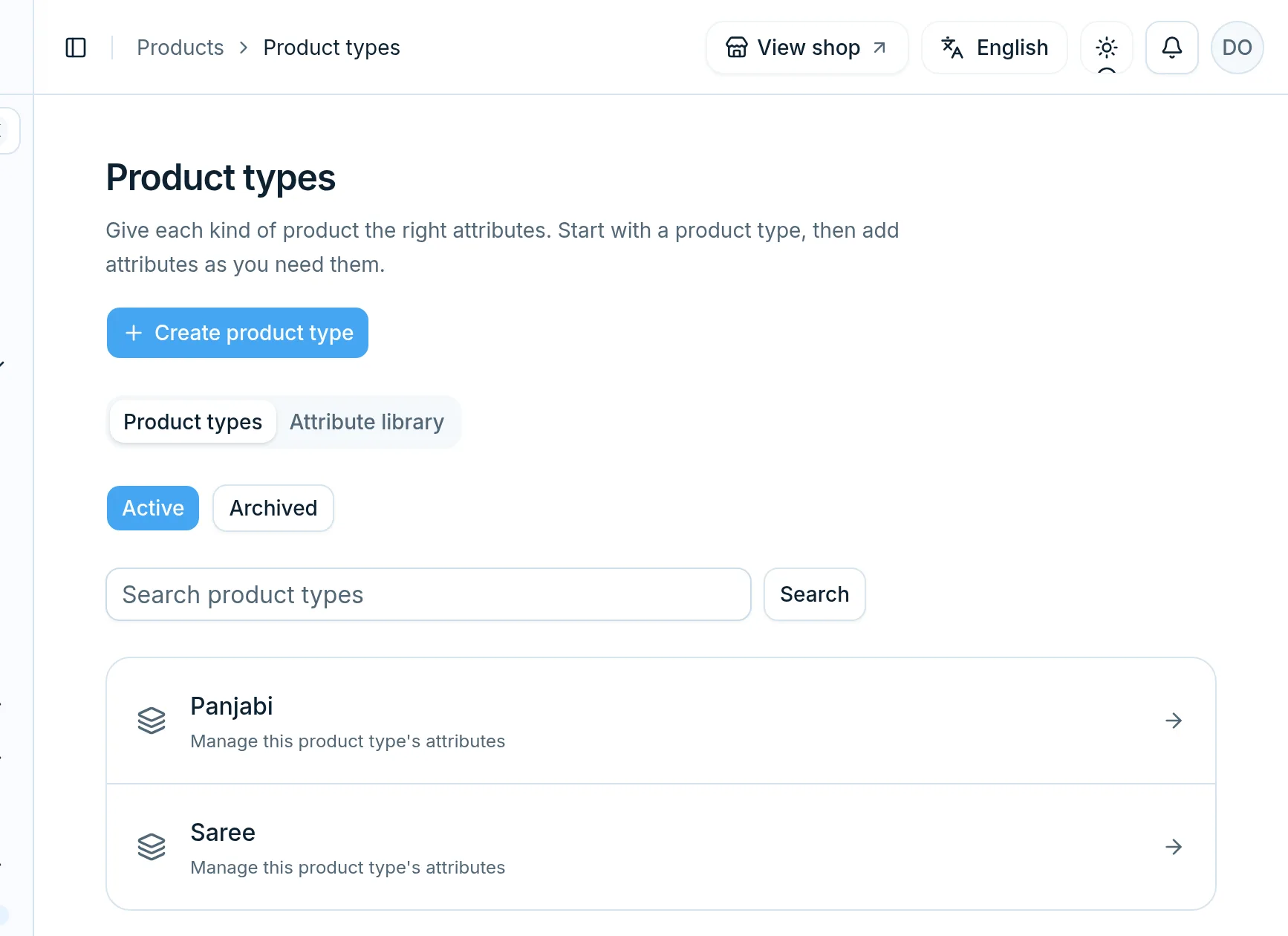
Open Products › Product types and tap “Create product type”. Name what the product is: Panjabi, Saree, T-shirt. Make one for each kind of thing you sell, not one per colour or per season.
Give it attributes
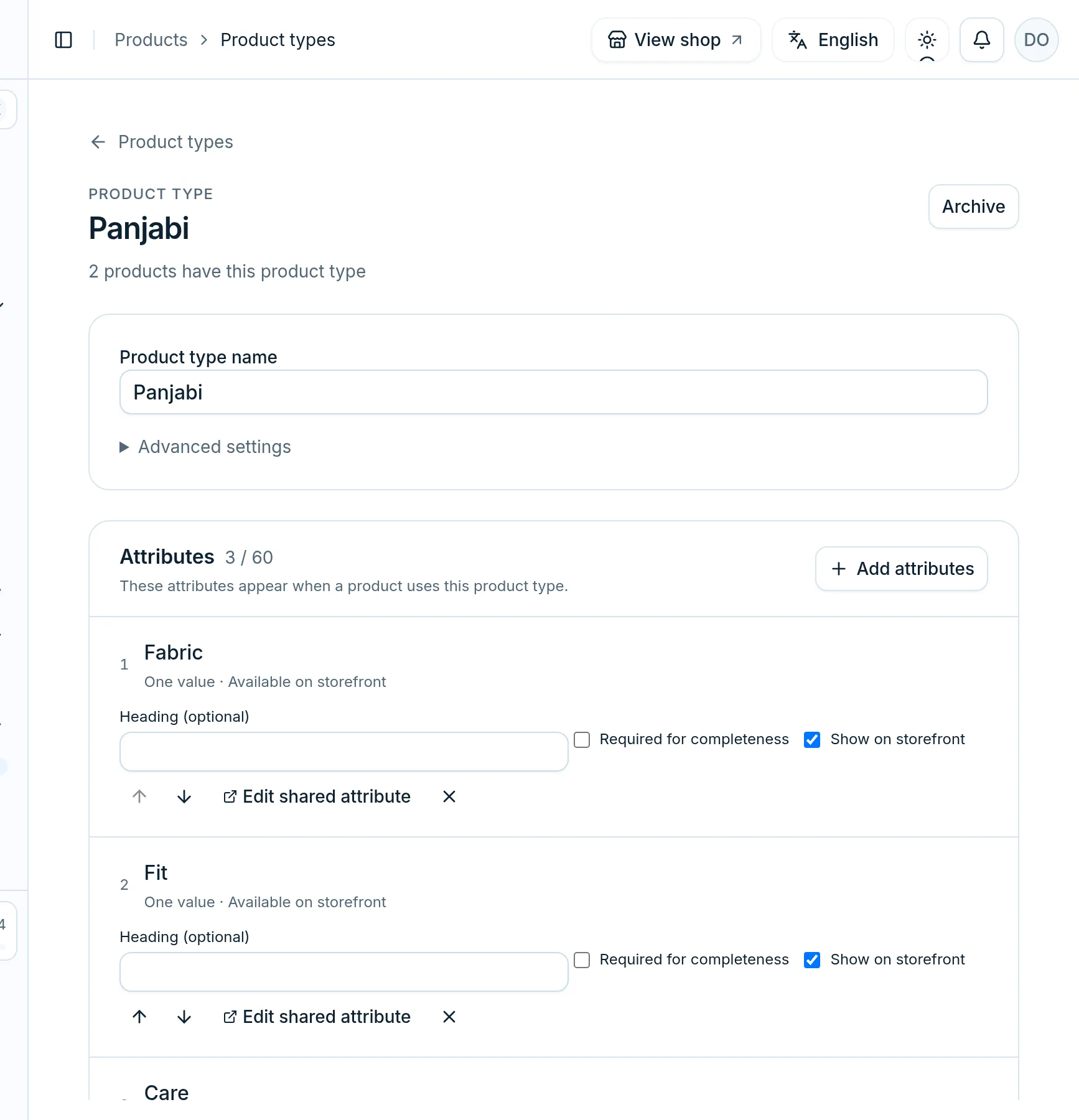
Open the product type and tap “Add attributes”. An attribute is one question every product of this type answers, like Fabric, Fit or Care. Each one has its answer kind: one choice from a list, several choices, text, a number, or yes or no.
Tick “Show on storefront” for the details shoppers should see. An attribute is shared: Fabric, made once, can be added to Saree too, and it lives in the Attribute library.
Pick it on the product
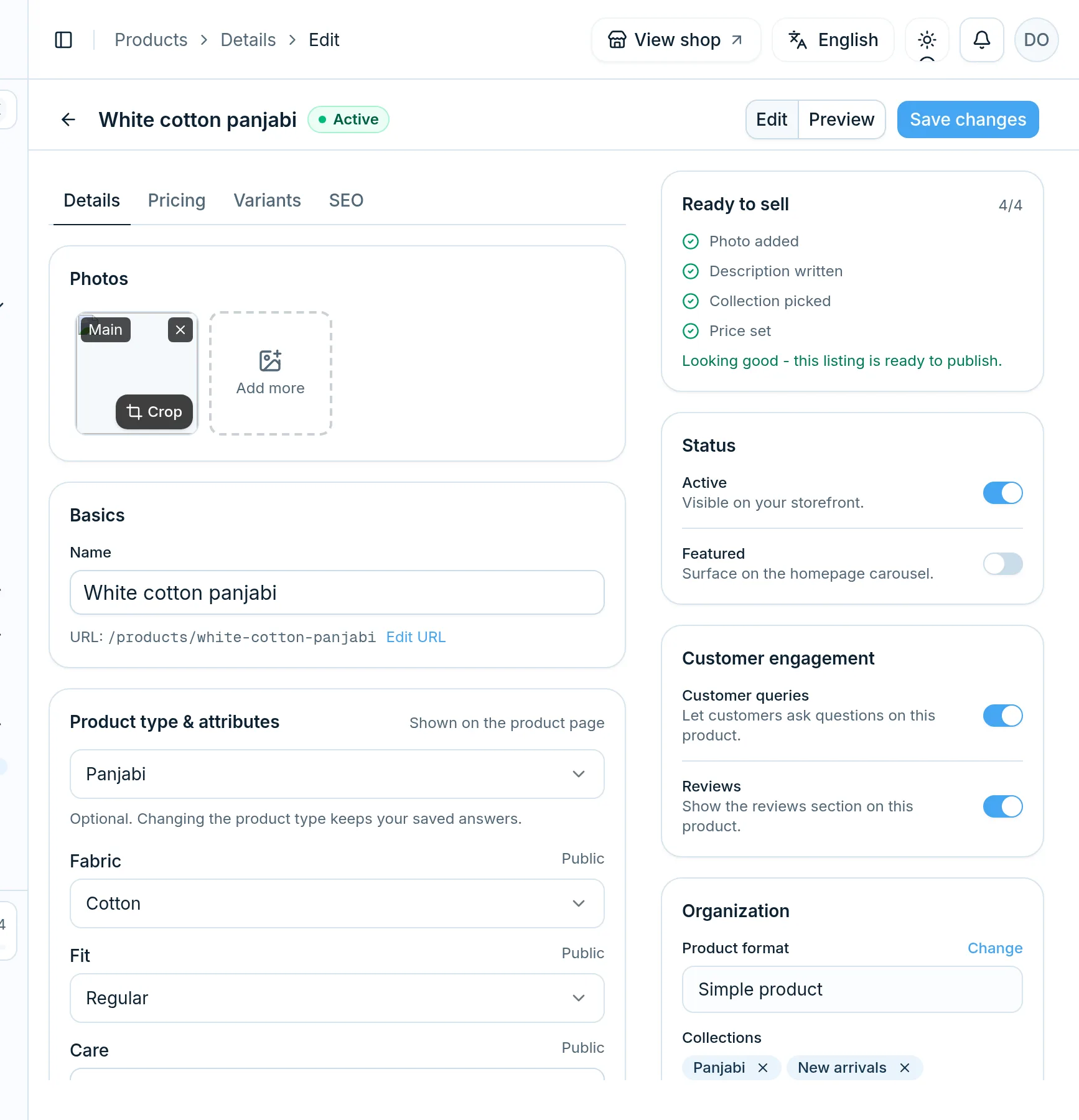
Open a product. Under “Product type & attributes”, choose its product type, and its questions appear right there. Fill them in and save. Changing the product type later keeps the answers you already saved.
On the right, under Collections, pick every collection the product belongs in. The same panjabi can be in Men › Panjabi and in New arrivals.
Build your collections
Open Products › Collections and tap “New”. Use the + on a row to make a collection inside it, so Men can hold Panjabi, and Women can hold Saree. Drag rows to set the order of your menu.
Collections are for browsing, so make as many as help shoppers: by who it is for, by kind of product, or by what is new or on sale.
What shoppers see
Collections give your shop its menu, its collections page and the path above each product. The product type's answers fill the product page's Specifications tab, only those you marked “Show on storefront”. Shared attributes like Fabric can also become filters on your product list.
Easy to mix up
Winter, Sale and New arrivals are collections
They say when or why a shopper should look, not what the product is. A winter panjabi is still a Panjabi.
The same name twice
“Saree” and “saree” are two separate product types. Keep one, move its products over, and archive the other.
Size charts follow the product type
Under Products › Size charts, give a product type its size chart once, and every product of that type shows it. A product can still use a different one.
A shop that is easy to browse
Open your shop on Sellvik and set up your product types and collections in a few minutes.
Open your shop on Sellvik