Your customers in Sellvik
Every person who buys from you is worth remembering: who spends the most, who has gone quiet, who sends parcels back. Sellvik keeps that list for you. You never have to type it.
Your list fills itself
Every order that comes in, from your shop, from a Messenger chat, or one you create yourself, saves the buyer under their phone number. The same number is always the same customer, even when it is typed as +880.
Open Customers in the menu. Each row shows the name, the phone, any tags, how many orders and how much money in total, and when the last order came. Type a name, a phone or an email in the search box to find someone. The three buttons at the top bring customers in from a file, save the list as a file, and add one by hand.
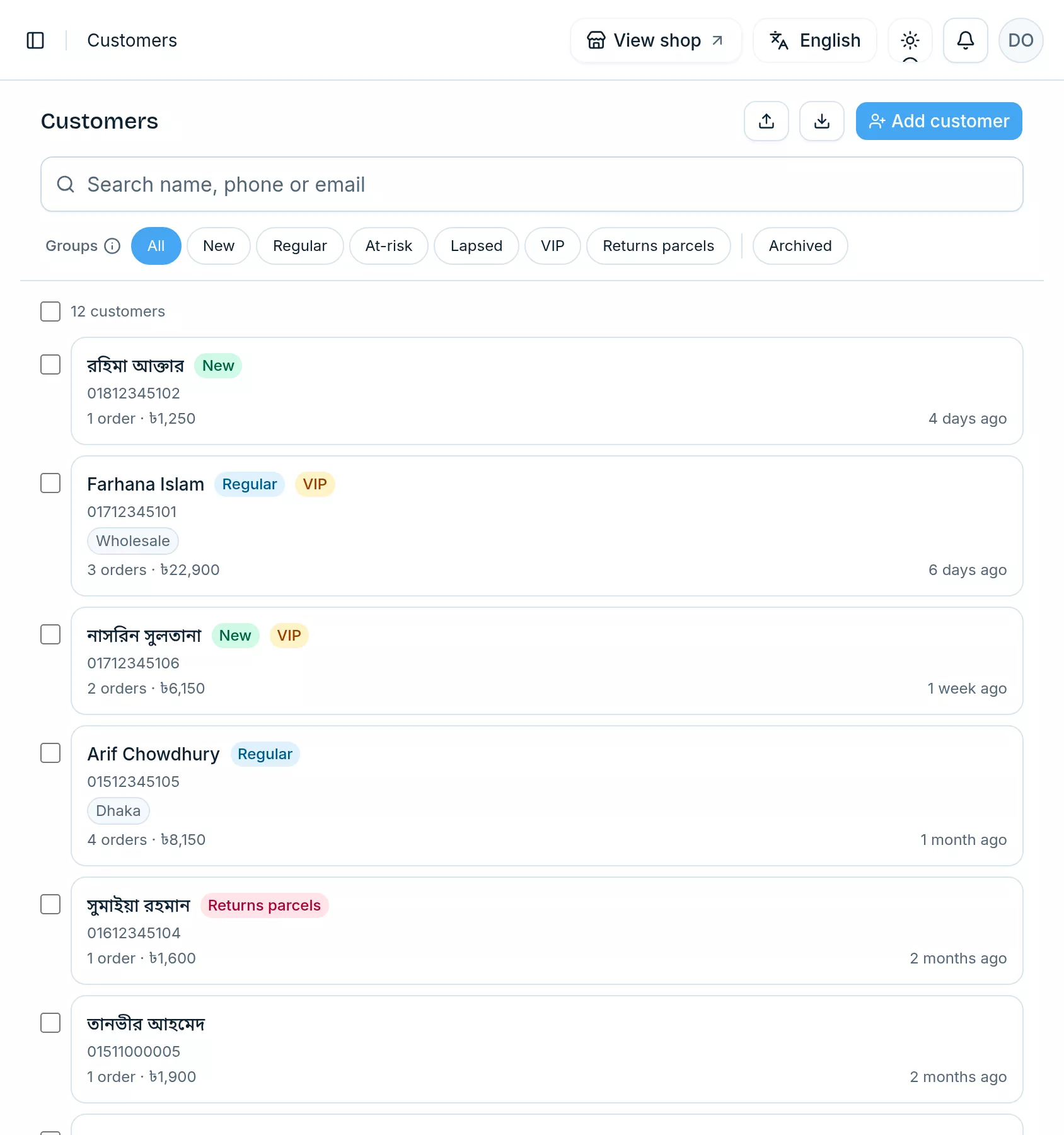
Groups: who is who, at a glance
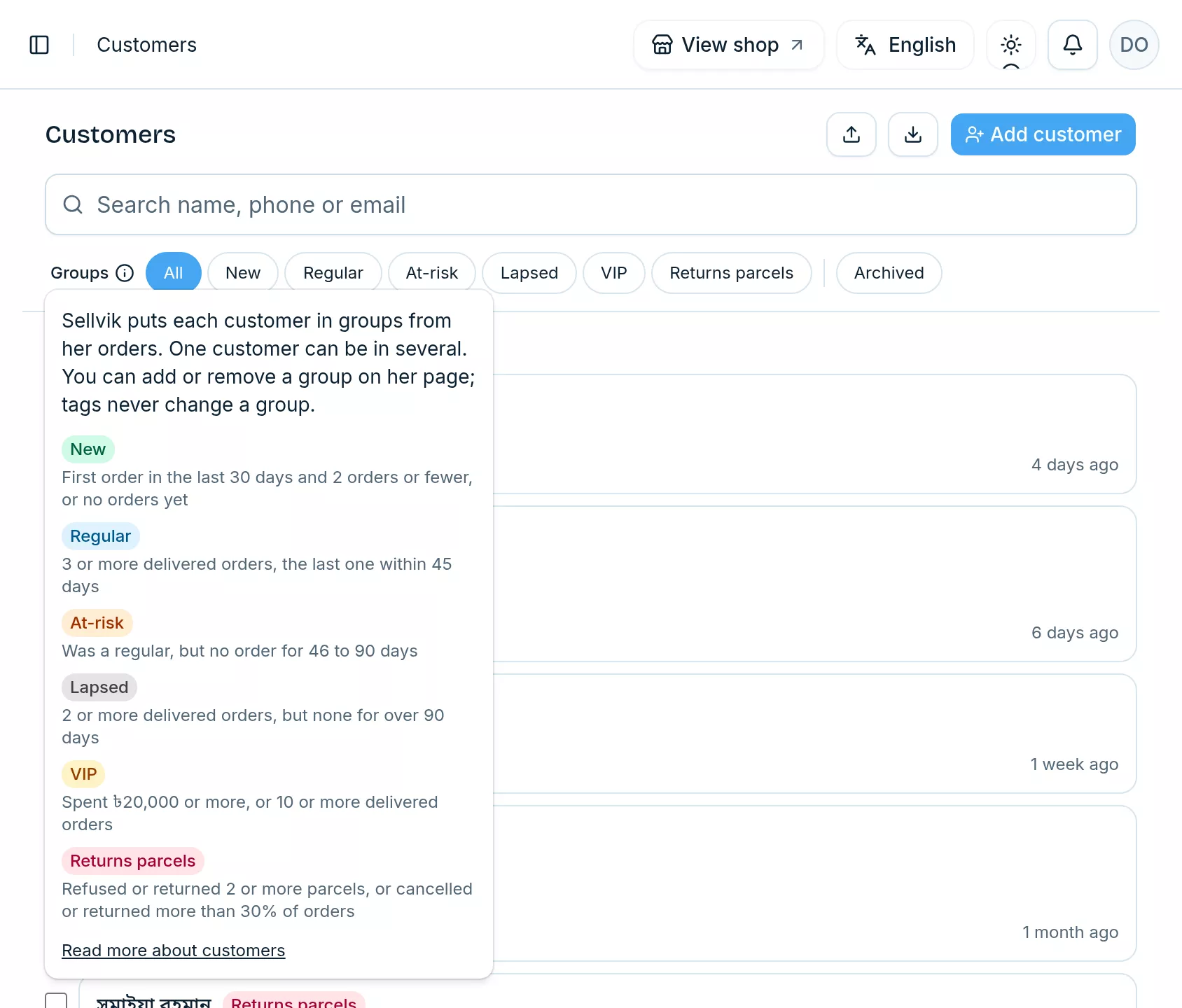
Sellvik puts each customer into groups by itself, from their orders. One customer can be in several: a first-time buyer who spent a lot is both New and VIP. Tap a group above the list to see only those customers, or tap “Groups” to read the rules.
You have the last word. On a customer's page, tap a group to see why they are in it, and remove it there, or tap “Add to group”. A group you add stays until you remove it. A group you remove stays off until something new happens, like another order or another parcel sent back. To change many customers at once, tick them and use “Groups”.
Tags are your own words. They never change a group.
- New: a first order in the last 30 days and no more than 2 orders, or no order yet.
- Regular: 3 or more delivered orders, the last one within 45 days.
- At-risk: was a regular, but has not ordered for 46 to 90 days. Win them back before they go.
- Lapsed: bought at least twice, but nothing for over 90 days.
- VIP: has spent ৳20,000 or more with you, or has 10 or more delivered orders.
- Returns parcels: cancelled or returned more than 3 out of every 10 orders, or couriers have reported two or more parcels refused or returned at that number. Ask for an advance, or call before you ship.
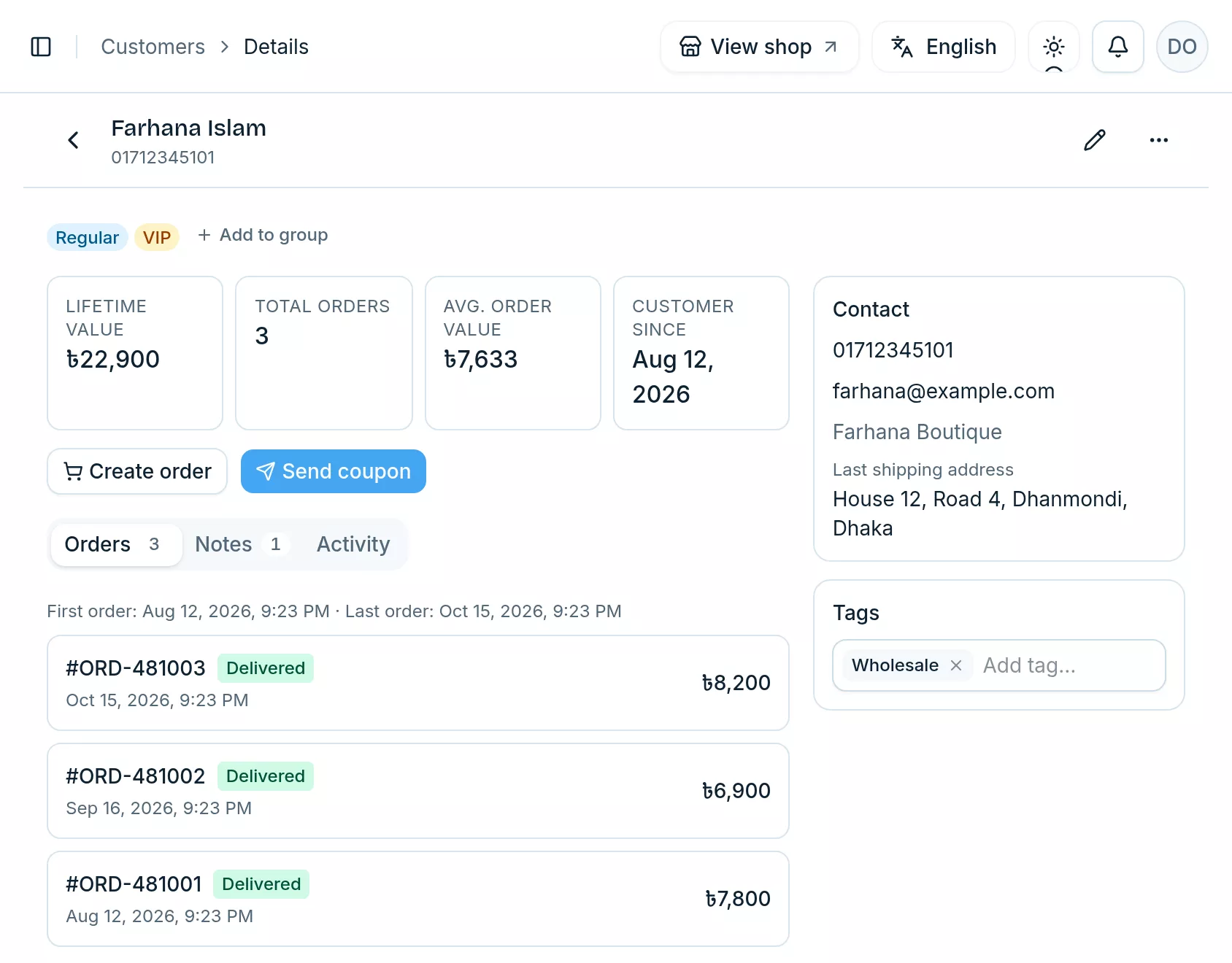
Open a customer to see the whole story
Tap a name. At the top: “Lifetime value”, everything they have spent minus refunds, “Total orders”, the average order and the day they became your customer. Beside them, their phone, email and the address their last parcel went to. Below, three tabs: “Orders” lists every order with its status (tap one to open it), “Notes” and “Activity”.
Taking an order on the phone? “Create order” opens a new order with the name and phone already filled in.
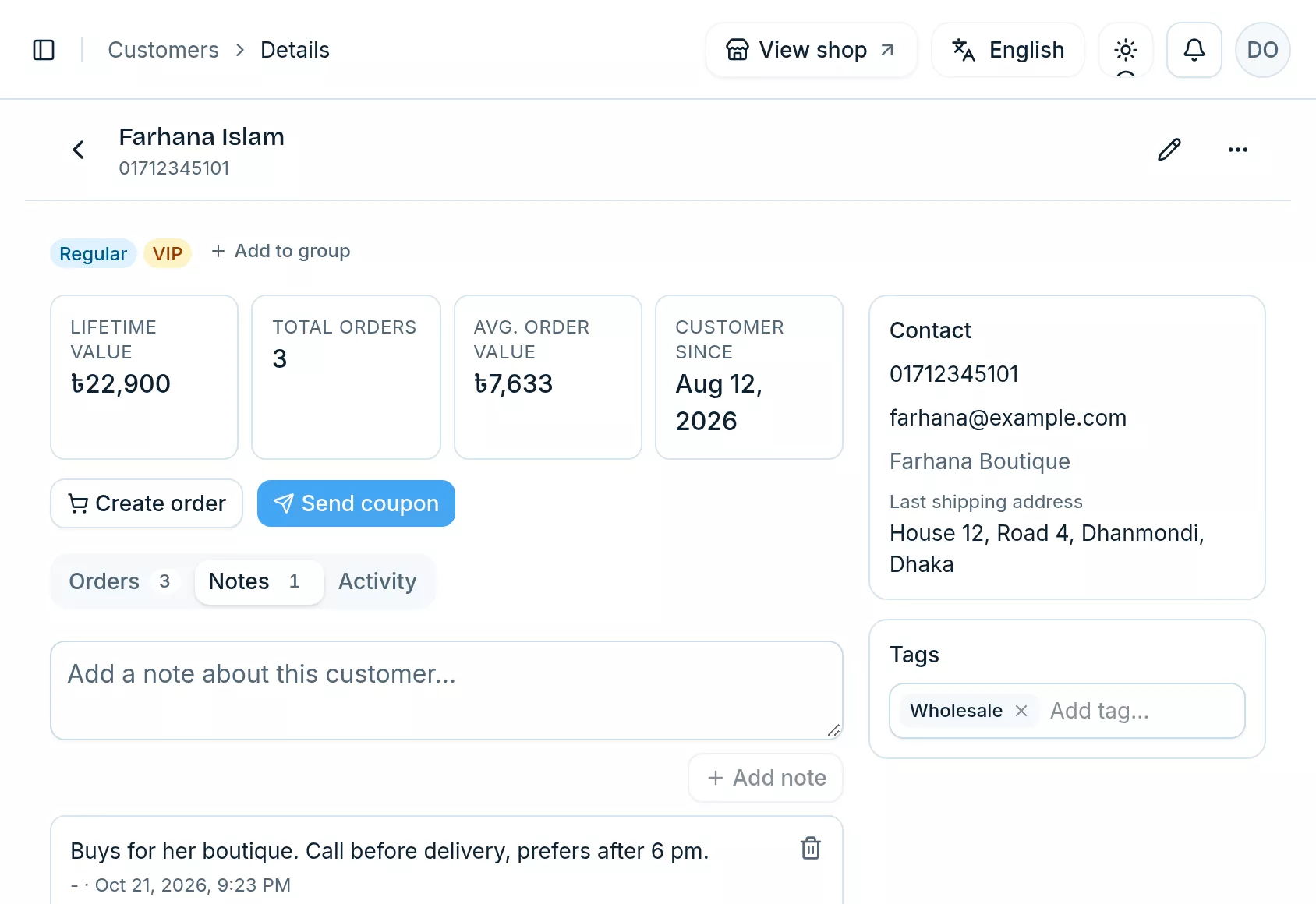
Notes, tags and activity
Open the “Notes” tab and write anything your team should know: “calls after 6 pm”, “buys for her boutique”. Everyone who opens this customer sees it, and the tab shows how many notes there are.
Tags sit beside the contact details, so you see them first. They are short words you choose, like Wholesale or Dhaka. Tap the tag box to pick one your shop already uses, or type a new one and choose “Create”; the × removes it. The “Activity” tab lists every order, tag and note, and who did it.
Send a coupon by SMS
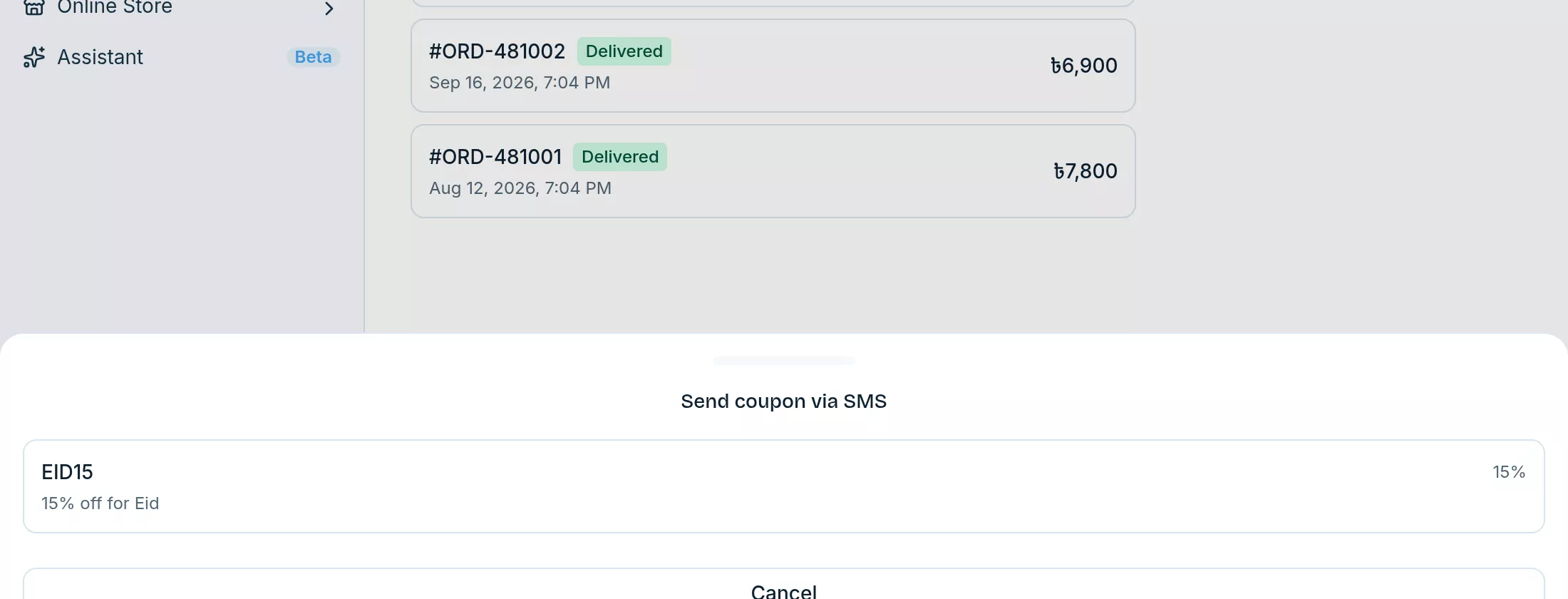
Want a quiet buyer back? On their page, tap “Send coupon”, then pick one of your active coupons. Sellvik sends the code to their phone by SMS, with your shop's name. The button appears once you have an active coupon and the customer has a phone number.
Add a customer by hand
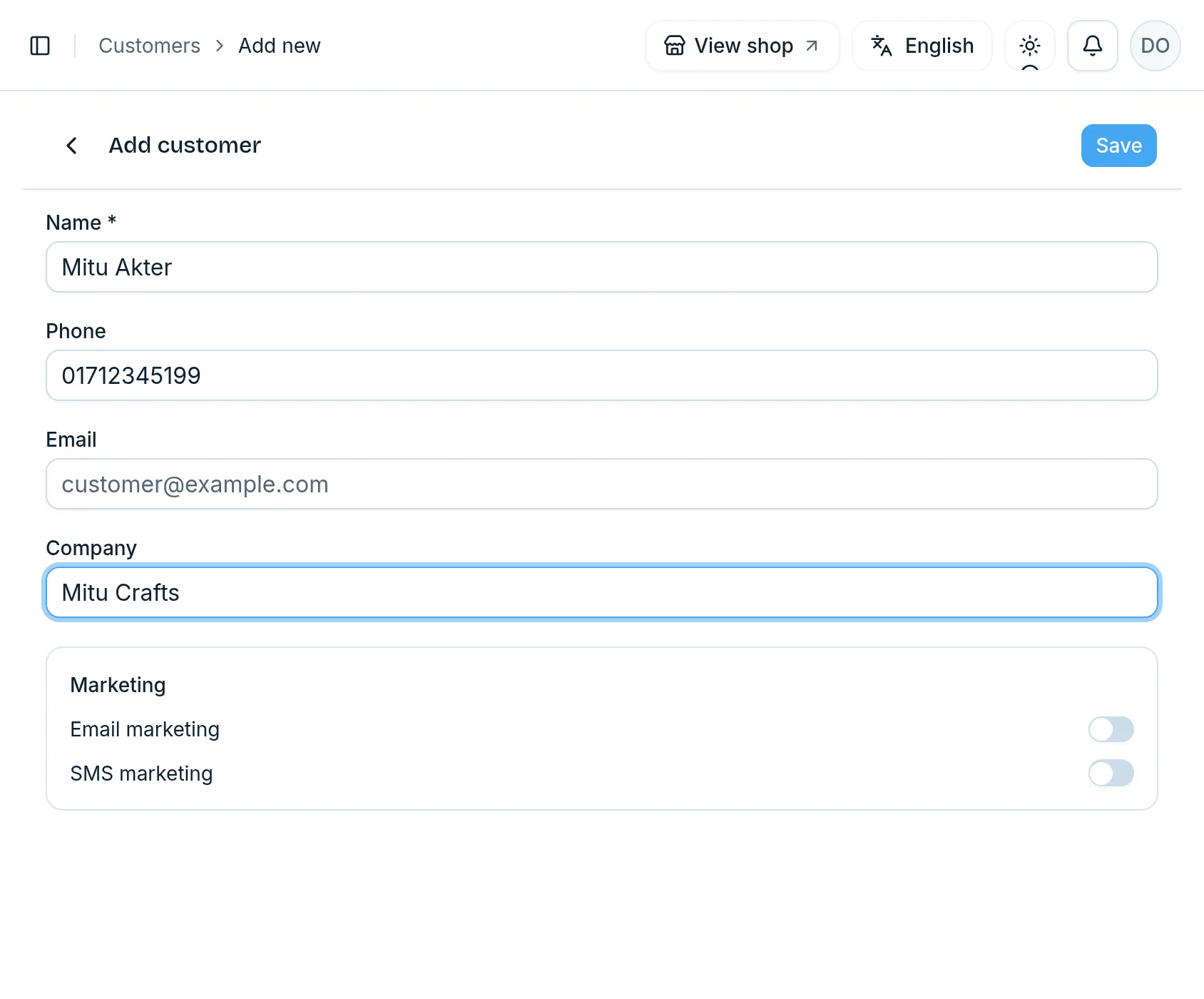
Someone who has not ordered yet, a wholesale buyer for example? Tap “Add customer”. A name and a phone or an email are enough. The phone must be a Bangladeshi mobile number; 01712345678 and +8801712345678 both work, and a number that is already saved is refused, so nobody is entered twice.
Turn on “Email marketing” or “SMS marketing” only when the customer has agreed to hear about your offers.
Work on many customers at once
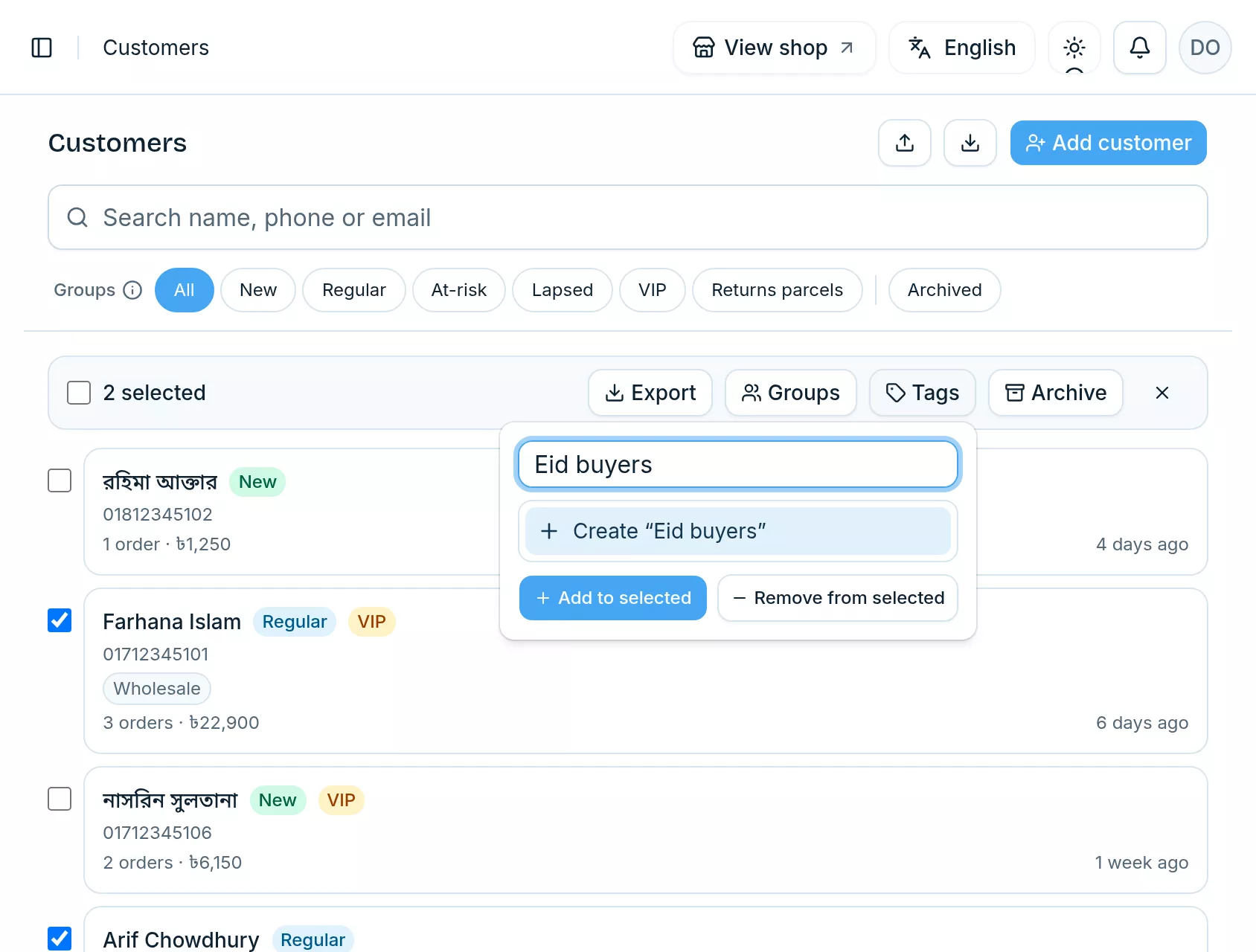
Tick the box beside each customer you want. A bar appears above the list: “Groups” adds all of them to a group or removes them from it; “Tags” puts the same tag on all of them, for example “Eid buyers”, or takes it off; “Export” saves just these customers as a file; “Archive” puts them away. Under “Archived” the same bar brings them back.
Bring your customers from another shop
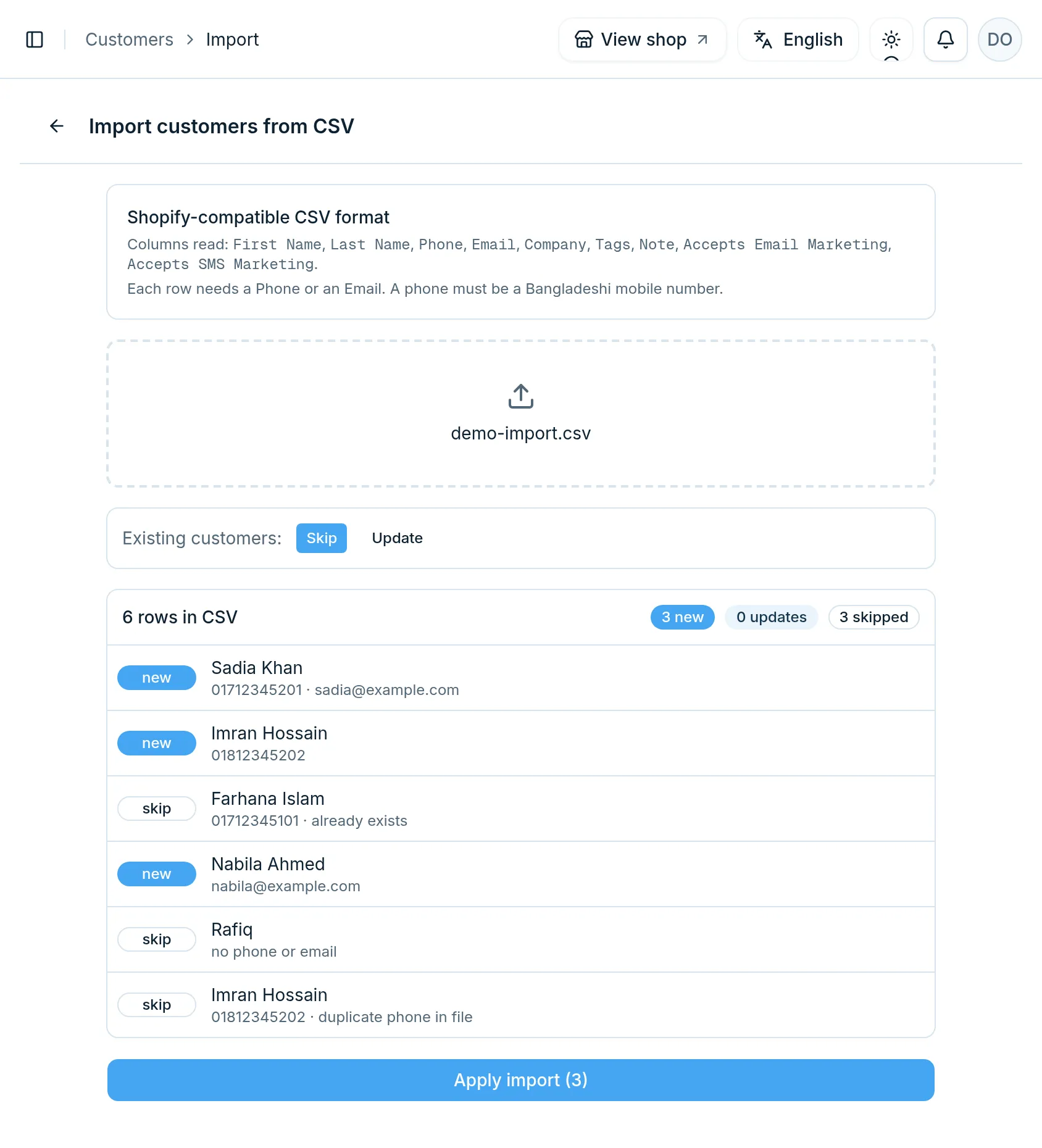
Moving from Shopify or a spreadsheet? Tap the upload button on the Customers page and choose a CSV file. Before anything is saved, Sellvik shows every row: new, or skipped and why (no phone or email, the same phone twice in the file, already in your shop).
For customers you already have, choose “Skip” to leave them as they are, or “Update” to refresh their details from the file. Then tap “Apply import”.
Good to know
Archive or delete?
Archive puts a customer away: they leave the list but nothing is lost, and a new order brings them back by themselves. Delete is for good: their notes and tags go, and their orders stay in your orders list without the customer attached. Both are in the ⋯ menu at the top of the customer's page.
Who on your team can do what
The owner and managers can do everything on this page. Staff can see customers and write notes. Support can see customers. Sending a coupon also needs permission to recover abandoned carts.
A customer in Returns parcels?
Read how to tell, before you ship, whether a cash-on-delivery parcel is likely to come back.
Will this parcel come back? →Know every buyer by name
Open your shop on Sellvik and your customer list builds itself from the first order.
Open your shop on Sellvik